Monday, 23 February 2015

Command Task in Informatica

Command task in informatica is used to run the shell / unix commands during the workflow. You can specify unix commands in the command task to remove rejected files, ftp files, creating files etc. We can use the command task in the following ways:
  • Standalone command task: Create the command task in the workflow or worklet to run linux commands.
  • Pre and post session shell command: You can run the unix commands by specifying them in the pre or post session shell command for a session task.
Creating Command Task

Follow the below steps for creating a command task:
  • Go to workflow designer or task developer. Click on Task in the toolbar and then click Create.
  • Select the Task Type as Command Task.
  • Enter a name for the command task and then click create->done.
  • Edit the command task.
  • Go to the commands tab and then click on Add button.
  • In the name field enter a name for the command and in the command field enter the shell command.
  • To add more commands click on the Add button.
  • Click on Ok to close the command task.
Note1: You can create a reusable or non-reusable command task.

Note2: If a shell command fails to execute, the command task runs the remaining commands and shows the status as succeeded. To change this behavior, in the properties tab check the option "Fail task if any command fails". Now when a shell command fails, the command task also fails and wont run other shell commands.

Note3: Shell commands are executed in the order you have specified in the Command task.

Usage of Command Task

The basic usage of Command task is to run unix / linux commands or shell scripts. Some usages of the shell commands in real world are listed below:
  • To transfer (ftp) file from remote server to the informatica server.
  • To archive the source files. Move the source file from one directory to another directory.
  • To clean up disk space by removing old files.


Sunday, 22 February 2015

How to work with Informatica Debugger

While loading data through Informatica, some time we come across situations where data is not loaded properly to the Target as per the transformation logic set. if you could track the data flowing from Source to Target then come to know where went wrong.
Use of Debugger:-
  1. Informatica Debugger is useful for testing and tracking errors in Informatica in run time.
  2. The data flow can be checked at each transformation level and can be modified for testing and analyzing
  3. Any valid mapping can be debugged to gain troubleshooting information about data and error conditions.
  4. No More Dummy Data / Flat Files are required for testing mapping
Debugger Session Types:
  • There are 3 types of Debugger Sessions
  • Debugger runs a workflow for each session type
    • Using an existing non-reusable session
    1. Existing source, target, and session configuration properties used
    2. The Integration Service runs the non-reusable session in the existing workflow
    3. The Debugger does not suspend on error
    4. Existing source, target, and session configuration properties used.

Thursday, 4 December 2014

How to Implement SDC 2 with MD5 Checksum

In general when requirement come to implement SCD type 2, we look out for any date field in the Target. If not date field we go for SCD type 2 with flag column, still we can go for SCD type two with versioning. This all scenario holds good when there is a date column or flag column in the table it’s easy for a developer to implement SCD type2.
Let’s say we come across a situation where there are no date columns or flag column, then how to implement SCD type 2. Usually we come across such situation when you are dealing with very old legacy system which doesn’t have such fields in the table. Then the solution is to generate hash code for the entire row and use it as identifier column for reference. To achieve this informatica allow us to use hash function namely MD5 () – Message Digest and CRC32 () – Cyclic Redundancy Check. The hash code in ETL perspective is referred as checksum value
Now we will try this in a simple example to see how does it works. I am considering a simple flat file as source and a target table for this scenario.
The above is the mapping for the same. So to begin with in expression transformation create two new output ports like below 


And edit the expression of the two new ports as below
MD5_CHECKSUM à MD5 (COL1||COL2|COL3||…..||COLn)
CRC32_CHECKSUM à CRC32(COL1||COL2|COL3||…..||COLn)
So how does it works, we are passing a concat value of all the fields to these hash function. It will create a unique hash value for these columns and we can use it for further unique key reference.
NOTE: It’s good to handle NULL values in the column which are used by NVL2() function to avoid any data discrepancies.
Next in look up transformation look up on the primary key for any changes and pass primary key and MD5_CHECKSUM and CRC32_CHECKSUM to a router transformation and populate rest fields from the source.
In Router create groups for insert n update rows as below
INSERT à ISNULL(LKP_PK)
UPDATE à NOT ISNULL(LKP_PK) AND  ( LKP_MD5_CHECKSUM != MD5_CHECKSUM AND LKP_CRC_CHECKSUM != CRC32_CHECKSUM )
Here you can use either of MD5 or CRC32 function, I have used both just for understabd process. So once you have driven the records for INSERT and UPDATE rows perform SCD type 2 then.
NOTE: Tacke care of Nulls and spcaces in the column your are performing concat operation and passing it to MD5() function, Nulls create a big problem here as teh value generated by MD5 won't be unique.
MD5(IIF(ISNULL(TRIM(COL1)),'A',TRIM(COL1))||IIF(ISNULL(TRIM(COL2)),'A',TRIM(COL2))||IIF(ISNULL(TRIM(COL3)),'A',TRIM(COL3)).....)
This way you can implement SCD type 2 without bothering about DATE or FLAG columns in the table.
Thnaks,
Hari

How to pull yesterdays or the last business day records - Informatica with CDC process

We often come across a scenario where we are asked to pull yesterday’s records or the latest records after the last run to avoid unnecessary fetching of old records from the source.
We can think of SYSDATE -1 here to solve this but it’s not always correct in all cases suppose the workflow was scheduled in such a way that it should only run on business days and imagine you are pulling INVOICE related data so source table are updated on only business days , So if we run the workflow on Monday and if we have used SYSDATE-1 logic we end up in pulling Sundays records were as Sunday there was no Sales we are wrong here. We need to pull last business day record ie either Friday or Saturday depending on the business. Also we end up with same situation when there are any holidays.
We can pull last business day invoices from many ways, here I am going to share the two ways I have came across.
1.      Mapping Variable:
I believe it’s the easiest one of all where we declare a mapping level variable in the mapping and assign it with SESSIONSTARTTIME and use it in SQL override of the same mapping.

Example:

Consider the below simple mapping

SourceàSQàEXPàTarget

Follow these steps to implement this logic

·         Create mapping Parameter and variable option, there create a mapping variable like $$LASTRUNDT of type date. There you can see initial value; either you can assign that value with some particular date or NULL. Note the date format here is MM/DD/YYYY HH24:MI:SS, so be careful when you are assigning the date there.

·         Now use the mapping variable $$LASTRUNDT in the Source qualifier like
Select COL1, COL2, COL3….. COLn from SALES.INVOICE
Where INVOICE_DATE >= TO_DATE(‘$$LASTRUNDT’,’ MM/DD/YYYY HH24:MI:SS’)

·         In Expression transformation create a output port LASTRUN and in the expression use
SETVARIABLE($$LASTRUNDT,SESSSTARTTIME). So here you are assigning the SESSIONSTARTTIME value to your mapping variable $$LASTRUNDT.
So how this gone a work now, it’s quite simple at the 1st run it will use default value if you have declared any initial value while creating mapping variable or IS will pick the default value i.e. 01/01/1753 00:00:00. This is how 1st run work, it is advised to initialize the variable with required date.
Then we have used setvariable function in expression right that will assign the session start time to the variable $$LASTRUNDT.
When you run the session again IS will pick the updated $$LASTRUNDT value which hold previous run’s timestamp. So this way we can implement a system which pulls last business day records or latest records after the last run.
2.      Mapping Parameter:
Parameter file can also be used to store the last run timestamp as a parameter and then use the parameter in the mapping. This system needs two mapping and session objects to perform the last business day load.
Let’s see how we can achieve it
·         Create a mapping parameter in the data load mapping where you are loading the last business day records as $$LASTRUNDT
·         Now use the mapping parameter $$LASTRUNDT in the Source qualifier like
Select COL1, COL2, COL3….. COLn from SALES.INVOICE
Where INVOICE_DATE >= TO_DATE(‘$$LASTRUNDT’,’ MM/DD/YYYY HH24:MI:SS’)
·         Create a mapping to write the parameter file like below
Source à SQ à Exp à Target(Parameter file).
·         In the expression transformation create a output port with expression as below
[Session Name]
$$LASTRUNDT = SESSSTARTTIME
Drag it and connect with the mapping parameter port.
·         So here we are writing the last run timestamp to a mapping parameter file, which will be used in the next mapping in filter condition.
So how this will work, here it is during the 1st run u can either initialize the parameter value with some date or you can keep the date value in the parameter file itself so it will take the initial value for the filter condition and pull the record.
Next runs is the mapping parameter session which is going to write the last run timestamp to the parameter. This will be used during next cycle where IS will pick the $$LASTRUNDT parameter value from the parameter which was written by the previous cycle. This is how we can implement data pulling of last business day by using the parameter file.
Thanks
Hari,

Wednesday, 26 November 2014

How to add same column data with separated by special character in informatica?

Suppose the source table has values like this
10 X
10 Y
10 Z
20 A
20 B
20 C
30 P
30 Q
30 R
And the target should be
10 X*Y*Z
20 A*B*C
30 P*Q*R 

How will you do the mapping?
Answer: This can be done using an expression transf and Aggregator transf.

In expression transf declare 2 variables ID_V and NAME_V
NAME_V
IIF(ID_V=ID,NAME_V ‘ * ‘ NAME,NAME)
ID_V
IIF(ID_V!=ID,ID,ID_V)
NOW pass the output ports to aggregator GROUP BY ID and connect to target.


Thanks
Hari

how to write a sql query for Number of working days between any 2 given dates.?

The working days means count of days other then Saturdays and Sundays. Let us take the given 2 dates as ’dd-mm-yyyy′ and SYSDATE.
and your result will be look like 
select count(val) Number_of_working_days from
(
select
to_number(to_char(to_date(’dd-mm-yyyy′)+rownum , ’D')) val,
to_char(to_date(’dd-mm-yyyy′)+ rownum) date1,
to_char(to_date(’dd-mm-yyyy′) + rownum, ‘Day’) day1
from
all_objects
where
to_date('dd-mm-yyyy')+rownum<= sysdate
)
where val not in (6,7)
Thanks
Hari


How to Concate multiple fields from the source table as comma separated values into a field in the target table.

Ex:suppose i have a file like

Name,Dno,Address
XXX,IT,bangalore,Karnataka,India
YYY,BPO,chenai,tamilnadu,india
ZZZ,HR,Pune,Maharasta,India

Here delimiter is “,”(comma) and if we look into address column we have multiple delimiters those need to load into same column in target.
same example we can see below


Below is the script for EMPLOYEE_SKILLS as source table:


CREATE TABLE EMPLOYEE_SKILLS
(EMP_ID NUMBER(10),
EMP_NAME VARCHAR2(30),
EMP_SKILL1 VARCHAR2(40),
EMP_SKILL2 VARCHAR2(40),
EMP_SKILL3 VARCHAR2(40));

The data available in the EMPLOYEE_SKILLS table is shown below:


Below is the script for EMPLOYEE_SKILL_SUMMARY target table:

CREATE TABLE EMPLOYEE_SKILL_SUMMARY
(EMP_ID NUMBER(10),
EMP_NAME VARCHAR2(30),
EMP_SKILLS VARCHAR2(120));

The data from EMP_SKILL1, EMP_SKILL2 and EMP_SKILL3 columns of EMPLOYEE_SKILLS table should be concatenated as comma separated values into the EMP_SKILLS column of the EMPLOYEE_SKILL_SUMMARY table.

The mapping shown above is the earlier mapping which concatenated all the skill Input port values in the EMP_SKILL_OUT Output port in the EXP_CONCAT_SKILLS Expression Transformation. The expression used in the EMP_SKILL_OUT port is shown below.


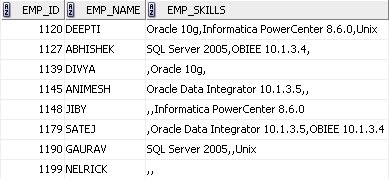
The issue surfaced after the data was loaded in the target table. Below are the records loaded into the EMPLOYEE_SKILL_SUMMARY table.


Now, the EMP_SKILLS field was displayed in some analytical reports and the way the data showed up didn’t look very pleasing. For instance, EMP_ID = 1199 has no skills in the EMPLOYEE_SKILLS source table, so when the three input port values were concatenated in the expression transformation, the data displayed in the reports was ',,'. So, a logic needed to be implemented that took care of NULL values and didn’t add a ‘comma’ for the NULL values. 

The new logic is discussed below.


Instead of concatenating all the EMP_SKILL1_IN, EMP_SKILL2_IN and EMP_SKILL3_IN port values together, the new logic checked if the Input Skill values in the ports EMP_SKILL1_IN and EMPSKILL2_IN were having NULL values. If it is a NULL value, it will pass a blank string as '', else it would concatenate the incoming value with a ‘comma’ in the variable ports EMP_SKILL1_V and EMP_SKILL2_V.

The EMP_SKILLS_CONCAT_V variable port will concatenate values from the variable ports EMP_SKILL1_V, EMP_SKILL2_V and the input port EMP_SKILLS3_IN.

Now, the only problem of a ‘comma’ occurring at the end of the concatenated string will be in a scenario when EMP_SKILL2_IN and EMP_SKILL3_IN values are NULL or when EMP_SKILL3_IN values is NULL. For instance, if we observe in the source table EMPLOYEE_SKILLS, for EMP_ID = 1127, the EMP_SKILL1 and EMP_SKILL2 columns have valid data. So, for this particular record, the EMP_SKILLS_CONCAT_V port will have the string value as ‘SQL Server 2005,OBIEE 10.1.3.4,’. At the end of the string, the extra comma gets added as well. 

To eliminate this ‘comma’, the string in the variable port EMP_SKILLS_CONCAT_V is reversed in the variable port EMP_SKILLS_REVERSE_V. The EMP_SKILLS_REMOVE_COMMA_V variable port will check for the occurrence of a ‘comma’ at the start of the data string. If it encounters a comma, it will pass only the substring without the ‘comma’ at the start of the string, else it passes the data as it is. This is achieved with the expression as shown below.


Now, to get back the original concatenated string without any extra ‘comma’ , reverse the data again and pass it through the EMP_SKILLS_OUT output port to the final target table column EMP_SKILLS.

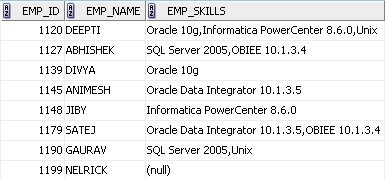
These are the records in the EMPLOYEE_SKILL_SUMMARY table after running the modified mapping again.

Thanks
Hari